Create Evidence
This guide explains how to create evidence in the Openlane Console for compliance management.
Prerequisites
- Access to the Openlane Console
- Appropriate permissions to manage compliance evidence
Steps to Create Evidence
- Log in to the Openlane Console.
- Navigate to Evidence
- Click the Submit Evidence button.
- Fill in the required details:
-
Evidence Name: A descriptive name for the evidence.
-
Description: Briefly describe the evidence.
-
Collection Procedure: Specify how the evidence was collected with a detailed description.
-
Source: Indicate the system or process that generated the evidence.
-
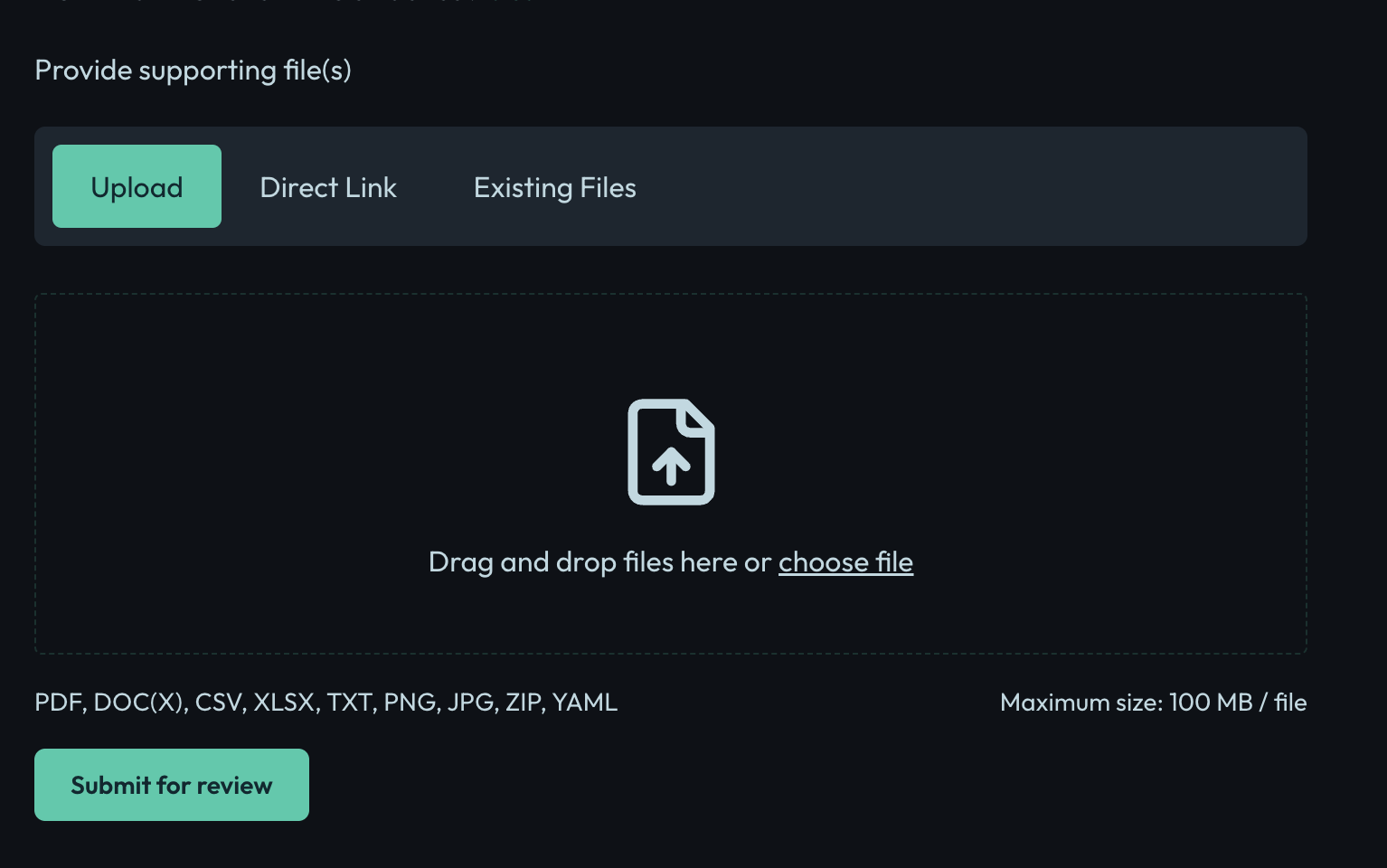
Upload File: Attach relevant files if needed.
-
Tags: Add tags for easier searching and categorization.
-
Renewal Date: Set a date for when the evidence should be reviewed or renewed.
-
Associated Controls: Link the evidence to relevant controls or compliance requirements.
-
- Click Submit for review to create the evidence record.
Tips
- Ensure all required fields are completed.
- Use clear and descriptive names for easier identification.
- Attach supporting documents to strengthen your evidence.
Next Steps
After creating evidence, you can link it to controls or compliance requirements as needed.
For more information, see the compliance management documentation.