Evidence Dashboard
Evidence Dashboard Overview
The dashboard provides a visual summary of all evidence items, their statuses, and collection methods. This helps compliance teams quickly assess the state of evidence collection and identify any gaps or items requiring attention.
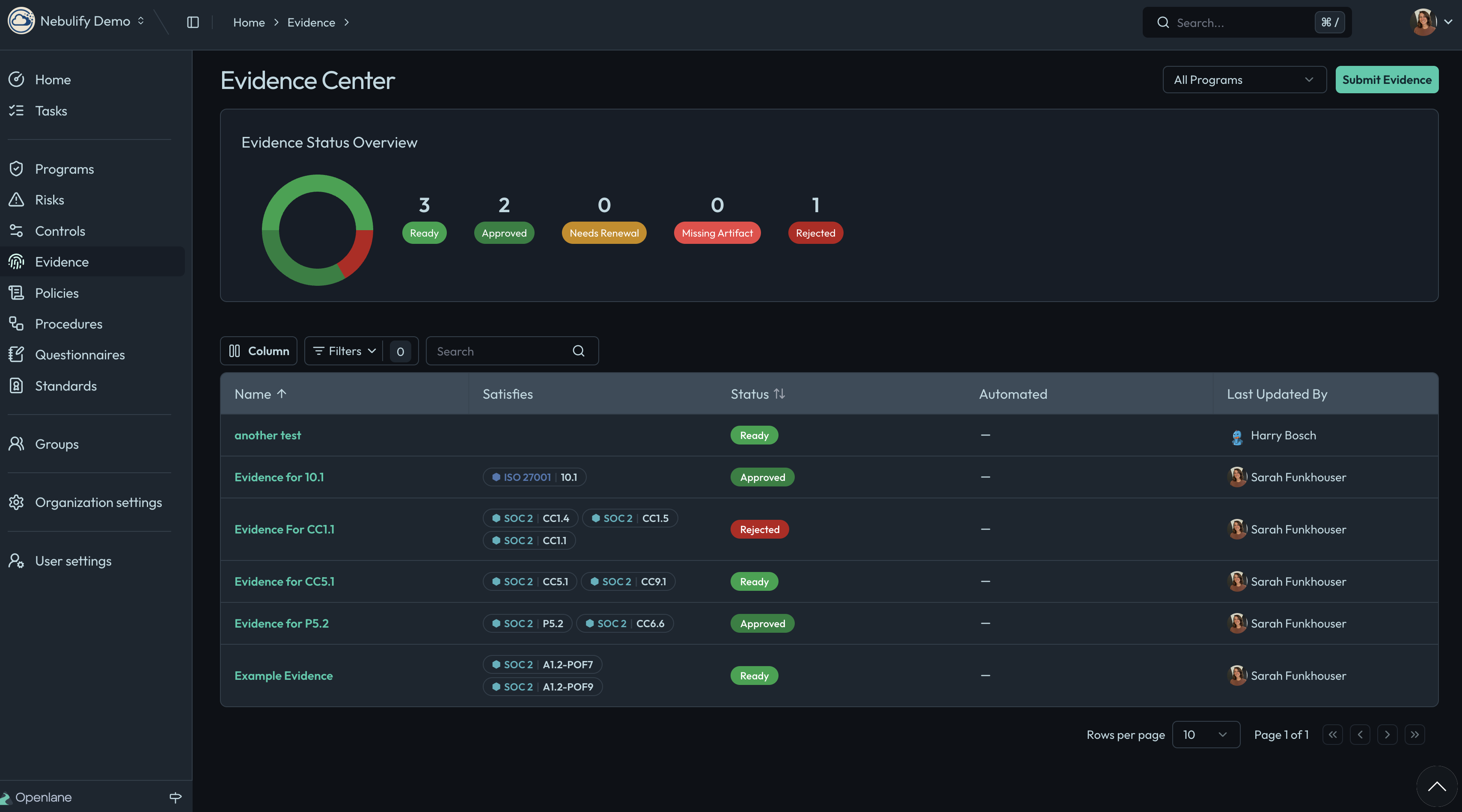
Evidence Statuses
Each evidence item is assigned a status, such as:
- Ready: Evidence has been collected and is available for review.
- Approved: Evidence has been reviewed and accepted.
- Needs Renewal: Evidence is outdated and must be updated or recollected.
- Rejected: Evidence did not meet requirements and needs to be replaced.
Statuses are visually indicated in the dashboard, making it easy to prioritize actions.
Filtering and Searching
Use the search bar and filter options to:
- Locate evidence by name, status, or associated control.
- Filter by collection method (automated or manual).
- Narrow results to specific frameworks or compliance requirements.
Automated vs. Manual Evidence
- Automated Evidence: Collected directly from integrated systems (e.g., cloud providers, ticketing systems) with minimal manual intervention.
- Manual Evidence: Uploaded or entered by users, such as policy documents or screenshots.
Both types are displayed in the dashboard, with clear indicators of their source.
Continuous and Point-in-Time Evidence
- Continuous Monitoring: Evidence that is updated regularly, ensuring ongoing compliance.
- Point-in-Time Evidence: Captured at a specific date, useful for audits or periodic reviews.
The dashboard allows users to distinguish between these types and manage them accordingly.
Managing Evidence
From the dashboard, users can:
- Add new evidence items.
- Update or renew existing evidence.
- Assign evidence to specific controls or requirements.
- Export evidence reports for audits.
For more details on creating evidence, see the Creating Evidence section.